Trendos Prompt Management
Last updated: April 22, 2026
If you need help creating efficient custom prompts, we do offer a Prompt Management feature that generates prompts for you by analysing your brand context.
Follow this guide to start building your generated custom prompt library.
Step 1: Accessing Prompt Management
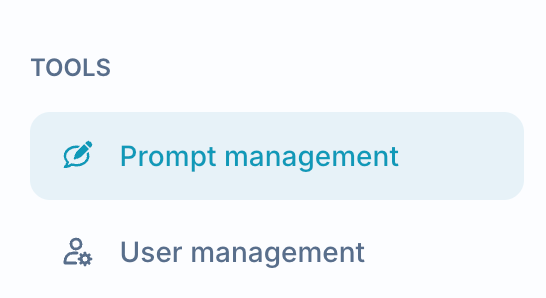
To begin, log into your Trendos dashboard, select your brand and navigate to the Prompt Management tab located in the primary sidebar under the “Tools”. This is your central hub for viewing existing prompts and creating new ones.
Step 2: Generate New Prompts
Once you are in the Prompt Management section:
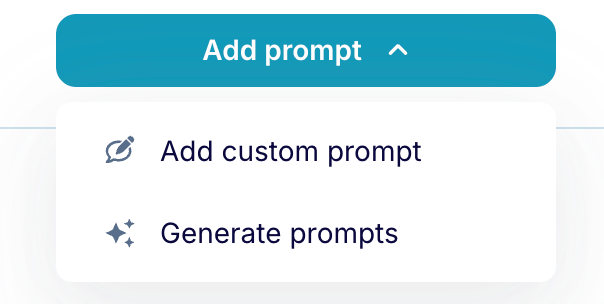
Click the Add Prompt button in the top right corner.
You can choose adding a custom prompt, where you manually write the prompt text and choose countries as well as LLMs to track. If you want Trendos to create prompts automatically - select Generate Prompts from the options.
Step 3: Set Your Quantity
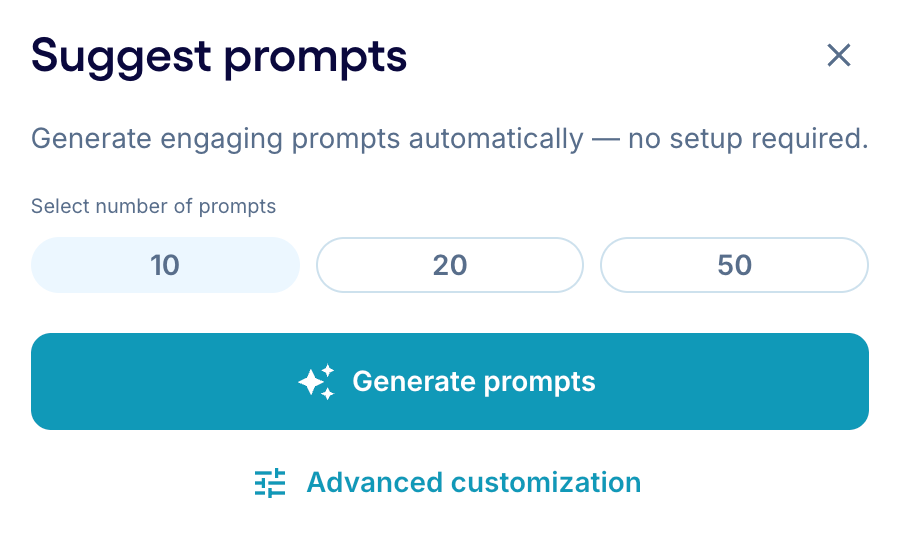
You can choose the amount of prompts you want to be generated.
Pick one of the number options.
Click Generate. Trendos will then generate a list of custom prompts based on your specific industry trends.
Step 4: Review and Select
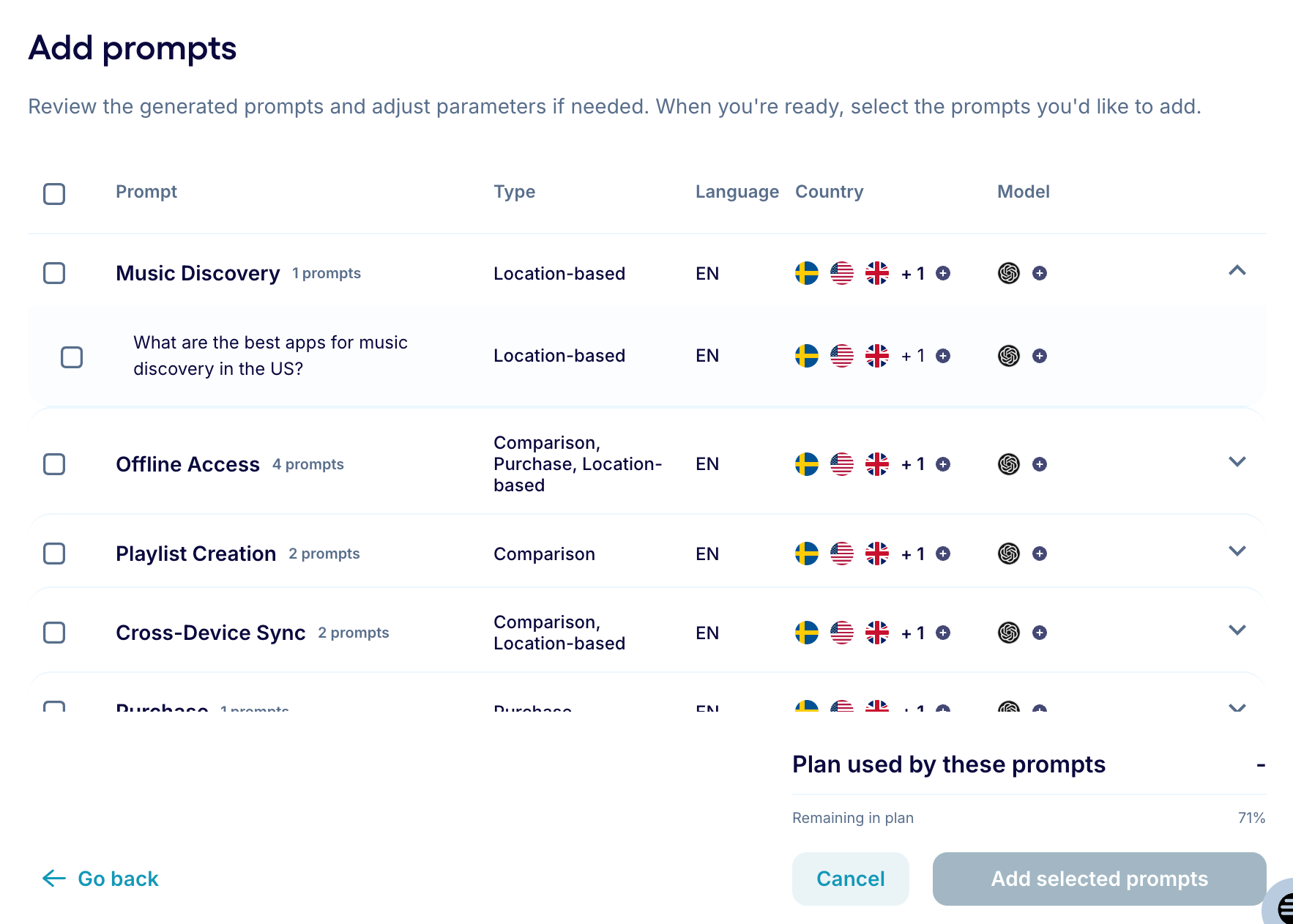
Generated prompts will be divided into bigger topics for easier navigation.
Not every prompt may be a perfect fit for you, which is why we put the final choice in your hands:
Review: Scroll through the list of generated suggestions.
Select: Check the boxes next to the prompts that resonate most to your brand or project.
Edit: You can add or remove additional countries or LLMs that are most relevant to you.
Save: Click Add selected prompts to finalize your selection.
Step 5: Track and Optimize
After adding your prompts, you can monitor their performance on your Brand Insights.