Import Prompts in bulk
Last updated: July 2, 2026
Overview
The Bulk Import Prompts feature allows you to upload multiple prompts at once instead of adding them individually. This is useful when you want to monitor a large set of AI search queries, evaluate brand visibility across many topics, or quickly migrate existing prompt lists into the platform.
Benefits
Save time by importing hundreds of prompts in a single upload.
Organize prompt tracking at scale.
Reduce manual data entry and formatting errors.
Quickly launch visibility monitoring for new campaigns, products, or content categories.
Before You Start
Prepare your prompts in a supported file format following this example. You can make a copy of the file, fill it with your prompts - download as csv file and you are ready to upload it.
How to Bulk Import Prompts
Navigate to Prompt Management in the platform.
Select Bulk upload prompts Import.

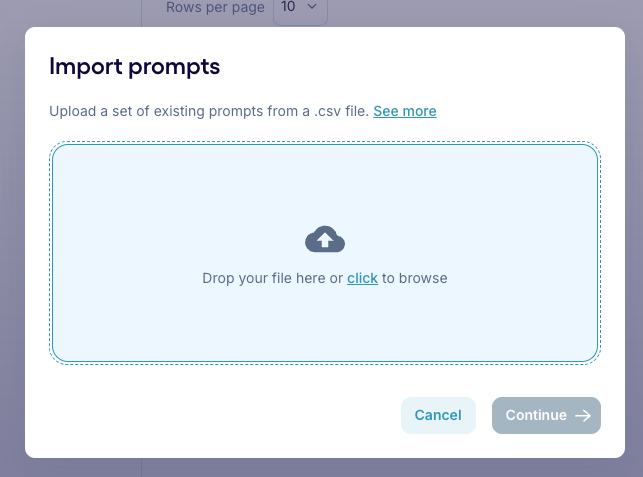
Choose import from .csv
File should contain the following columns:
Prompt group - a label used to organize and categorize related prompts.
Prompt - an individual query to be sent to AI Answer Engines.
Country code - an ISO 639-1 uppercase country code(s) (US). Multiple values can be provided, separated by commas and surrounded with quotation marks (e.g. "US,GB").
LLM model - model name (chatgpt). Multiple values can be provided, separated by commas (e.g. ChatGPT, Gemini). The model should have exact names: ChatGPT, DeepSeek API, Google AI Overview, Perplexity, Gemini, Grok API, Claude API.
Language code - an ISO 639-1 lowercase language code (en).
Upload the completed file.
Click Continue to complete the process.
Review the validation results.
Fix any errors or warnings if prompted.
Click Import to finish.
Once the import finishes, your prompts will be added to the selected workspace or project.
Best Practices
Use clear, natural-language prompts that reflect how users interact with AI search tools.
Group related prompts by campaign, product, or topic.
Remove duplicates before uploading.
Review imported prompts to ensure proper categorization and tracking.
Troubleshooting
My file won't upload
Verify that:
The file format is supported as in sample template.
The template structure has not been modified.
The language code is in lowercase letters, while country code in uppercase.
That different LLMs are separated by commas and there are no mistakes in LLMs spelling.
Need Help?
If you're unable to complete a bulk import, contact our support team via support@trendos.com or use our chatbot in the lower right corner of the screen.